
20.9 WPS Office(Linux 版)
WPS Office for Linux 是金山软件公司开发的 Linux 办公套件,兼容 Microsoft Office 文件格式,支持文字处理、电子表格和演示文稿等功能。
WPS Office 没有原生 FreeBSD 版本,且 Ports 中的 WPS 已无人维护,需通过自行构建的 Linux 兼容层安装。本节基于 Rocky Linux 兼容层给出安装与配置步骤。
警告
因为该 Port 已无人维护,请勿使用 Ports 中的 WPS Office。请自行构建兼容层后安装使用。
20.9.1 基于 Rocky Linux 兼容层(FreeBSD Port)
注意
请先参考本书其他章节完成 Rocky Linux 兼容层(FreeBSD Port)的安装。
RPM 工具用于将 rpm 软件包安装到基本系统中的 Rocky Linux 兼容层。
20.9.1.1 安装 RPM 工具
参考本书其他相关章节安装 RPM 工具(pkg install rpm4)。
20.9.1.2 下载 WPS Office
WPS Office 官方下载地址:WPS Office for Linux。选择“64 位 Rpm 格式”
请自行获取有效链接。如果使用火狐浏览器,可能需要关闭浏览器地址栏中的“增强型跟踪保护”功能方可下载。
技巧
该链接存在问题,目前无法通过 fetch 或 wget 下载。如有解决方案,请提交 PR 或 issue。
本文获取到的文件为 wps-office-12.1.2.25882.AK.preread.sw.Personal-1-663297.x86_64.rpm。
20.9.1.3 安装 WPS Office
切换到兼容层路径:
# cd /compat/linux/安装 WPS Office:
# rpm2cpio < /home/ykla/下载/wps-office-12.1.2.25882.AK.preread.sw.Personal-1-663297.x86_64.rpm | cpio -id技巧
本节示例中出现的用户名
ykla、主机名ykla及路径 /home/ykla 均为示例,请根据自身环境替换为实际值。
有类似“symlink”的错误信息是正常的。请将路径替换为本地下载文件的实际路径。
WPS Office 文件结构:
/compat/linux/
└── opt/
     └── kingsoft/
         └── wps-office/
             └── office6/
└── wps # WPS 可执行文件20.9.1.4 解决依赖问题
未使用包管理器动态安装,故依赖可能存在异常,须检查依赖项。
切换到兼容层的 shell:
$ /compat/linux/usr/bin/bash查看 WPS 可执行文件的动态库依赖:
bash-5.1$ ldd /opt/kingsoft/wps-office/office6/wps
        linux-vdso.so.1 (0x00007fffffffe000)
        libdl.so.2 => /lib64/libdl.so.2 (0x0000000801064000)
        libpthread.so.0 => /lib64/libpthread.so.0 (0x0000000801069000)
        libtcmalloc_minimal.so.4 => /opt/kingsoft/wps-office/office6/libtcmalloc_minimal.so.4 (0x0000000801600000)
        liblibsafec.so => /opt/kingsoft/wps-office/office6/liblibsafec.so (0x000000080106e000)
        libstdc++.so.6 => /opt/kingsoft/wps-office/office6/libstdc++.so.6 (0x0000000801a00000)
        libm.so.6 => /lib64/libm.so.6 (0x000000080108b000)
        libgcc_s.so.1 => /opt/kingsoft/wps-office/office6/libgcc_s.so.1 (0x0000000801166000)
        libc.so.6 => /lib64/libc.so.6 (0x0000000801e00000)
        /lib64/ld-linux-x86-64.so.2 (0x0000000001021000)
librt.so.1 => /lib64/librt.so.1 (0x000000080118b000)输出表明依赖库已经齐全。
20.9.1.5 运行 WPS Office
使用普通用户权限在 Linux 兼容环境中启动 WPS Office:
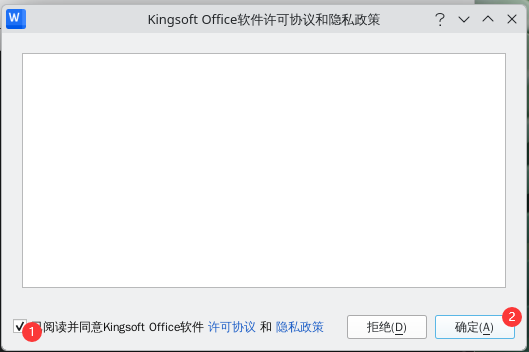
$ /compat/linux/opt/kingsoft/wps-office/office6/wps接受软件的许可协议和隐私政策:
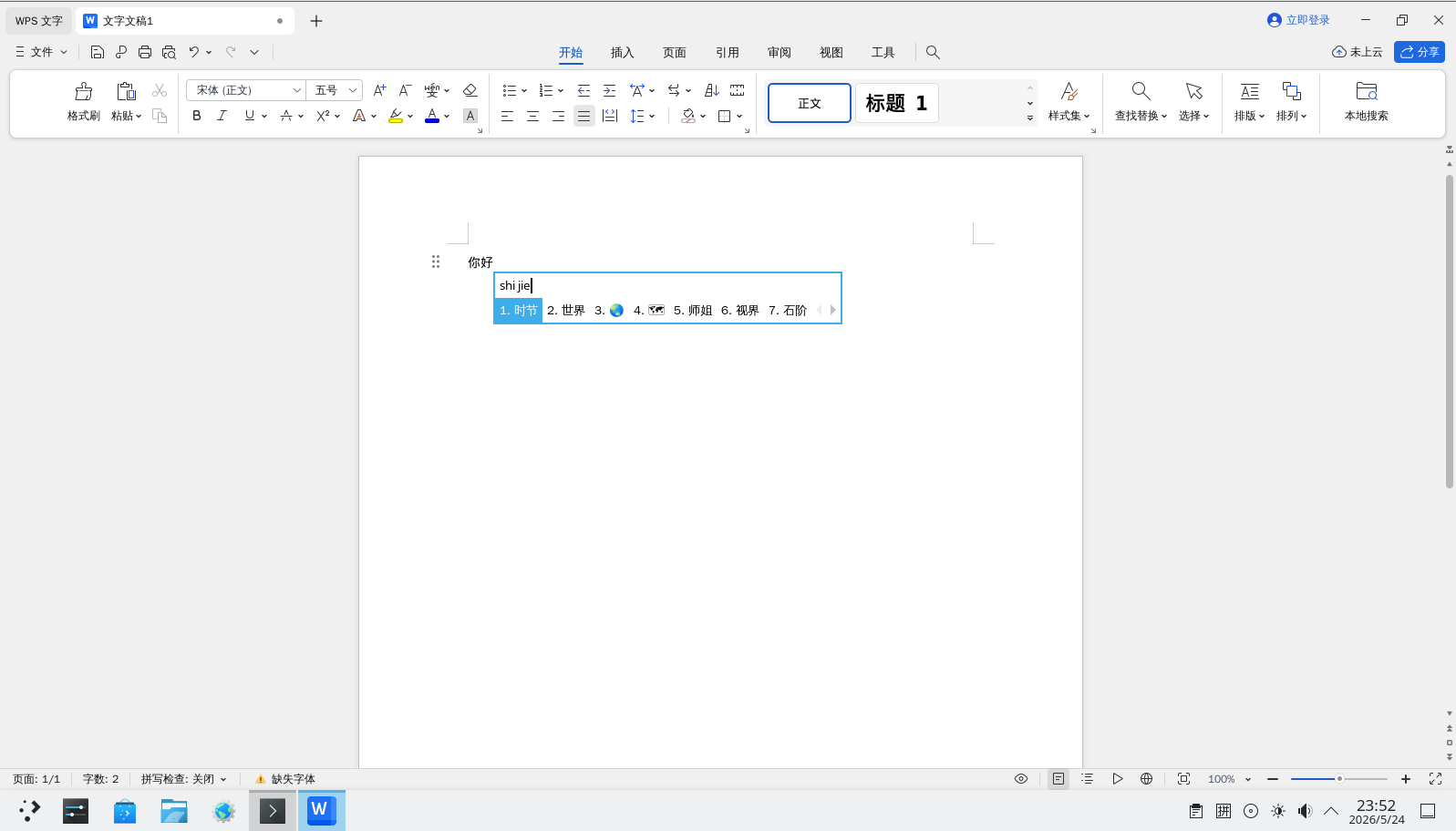
输入法正常运行。
快捷方式:将 /compat/linux/opt/kingsoft/wps-office/desktops/wps-office-wps.desktop 复制到桌面,修改如下。
[Desktop Entry]
Comment=Use WPS Writer to edit articles and reports.
Comment[zh_CN]=使用 WPS 文字编写报告,排版文章
Exec=/compat/linux/opt/kingsoft/wps-office/office6/wps %U
GenericName=WPS Writer
GenericName[zh_CN]=WPS 文字
MimeType=application/wps-office.wps;application/wps-office.wpt;application/wps-office.wpso;application/wps-office.wpss;application/wps-office.doc;application/wps-office.dot;application/vnd.ms-word;application/msword;application/x-msword;application/msword-template;application/wps-office.docx;application/wps-office.dotx;application/rtf;application/vnd.ms-word.document.macroEnabled.12;application/vnd.openxmlformats-officedocument.wordprocessingml.document;x-scheme-handler/ksoqing;x-scheme-handler/ksowps;x-scheme-handler/ksowpp;x-scheme-handler/ksoet;x-scheme-handler/ksowpscloudsvr;x-scheme-handler/ksowebstartupwps;x-scheme-handler/ksowebstartupet;x-scheme-handler/ksowebstartupwpp;application/wps-office.uot3;application/wps-office.uott3;x-scheme-handler/ksodoccenter;application/wps-office.msg;application/wps-office.eml;
Name=WPS Writer
Name[zh_CN]=WPS 文字
StartupNotify=false
Terminal=false
Type=Application
Categories=Office;WordProcessor;Qt;
X-DBUS-ServiceName=
X-DBUS-StartupType=
X-KDE-SubstituteUID=false
X-KDE-Username=
Icon=wps-office2023-wpsmain
InitialPreference=3
StartupWMClass=wps赋予权限后即可使用。
20.9.2 基于 Arch Linux 兼容层
请先参照本书其他相关章节构建 Arch Linux 兼容层,进入兼容层并切换到普通用户:
# chroot /compat/arch/ /bin/bash # 进入 Arch 兼容层
# su test # 切换到普通用户才能使用 AUR,此时位于 Arch 兼容层开始安装:
$ yay -S wps-office-cn ttf-wps-fonts wps-office-mui-zh-cn # 此时位于 Arch 兼容层,当前用户为 test
AUR Explicit (2): wps-office-cn-11.1.0.11698-1, ttf-wps-fonts-1.0-5
:: (1/1) Downloaded PKGBUILD: ttf-wps-fonts
  2 wps-office-cn                            (Build Files Exist)
  1 ttf-wps-fonts                            (Build Files Exist)
==> Packages to cleanBuild?
==> [N]one [A]ll [Ab]ort [I]nstalled [No]tInstalled or (1 2 3, 1-3, ^4)
==> 1  # 输入 1 后按回车
:: Deleting (1/1): /home/test/.cache/yay/ttf-wps-fonts
HEAD is now at ba3222c Add upstream URL
  2 wps-office-cn                            (Build Files Exist)
  1 ttf-wps-fonts                            (Build Files Exist)
==> Diffs to show?
==> [N]one [A]ll [Ab]ort [I]nstalled [No]tInstalled or (1 2 3, 1-3, ^4)
==> 1 # 输入 1 后按回车
diff --git /home/test/.cache/yay/ttf-wps-fonts/.gitignore /home/test/.cache/yay/ttf-wps-fonts/.gitignore
new file mode 100644
index 0000000..12be320
--- /dev/null
+++ /home/test/.cache/yay/ttf-wps-fonts/.gitignore
@@ -0,0 +1,5 @@
+*.pkg.tar.xz
+*.src.tar.gz
+src/
+pkg/
+
diff --git /home/test/.cache/yay/ttf-wps-fonts/PKGBUILD /home/test/.cache/yay/ttf-wps-fonts/PKGBUILD
new file mode 100644
index 0000000..21a51bb
--- /dev/null
…………
+url="https://github.com/IamDH4/ttf-wps-fonts"
+source=("$pkgname.zip::https://github.com/IamDH4/$pkgname/archive/master.zip"
+        "license.txt")
+sha1sums=('cbc7d2c733b5d3461f3c2200756d4efce9e951d5'
+          '6134a63d775540588ce48884e8cdc47d4a9a62f3')
+
# 输入 q 退出
:: Proceed with install? [Y/n] y # 输入 y 确认
==> Making package: ttf-wps-fonts 1.0-5 (Thu Jul  6 06:23:35 2023)
…………
==> Leaving fakeroot environment.
==> Finished making: wps-office-cn 11.1.0.11698-1 (Thu Jul  6 06:37:32 2023)
==> Cleaning up...

We trust you have received the usual lecture from the local System
Administrator. It usually boils down to these three things:

    #1) Respect the privacy of others.
    #2) Think before you type.
    #3) With great power comes great responsibility.

For security reasons, the password you type will not be visible.

[sudo] password for test: # 输入 test 用户的密码。若密码正确但仍提示错误,请重启 FreeBSD 后重试

Packages (2) ttf-wps-fonts-1.0-5  wps-office-cn-11.1.0.11698-1

Total Installed Size:  1370.17 MiB

:: Proceed with installation? [Y/n] y # 输入 y 确认安装
(2/2) checking keys in keyring                                      [######################################] 100%
(2/2) checking package integrity                                    [######################################] 100%
…………
(2/2) installing ttf-wps-fonts                                      [######################################] 100%
:: Running post-transaction hooks...
(1/4) Arming ConditionNeedsUpdate...
(2/4) Updating fontconfig cache...
(3/4) Updating the desktop file MIME type cache...
(4/4) Updating X fontdir indices...
[test@ykla ~]$ exit
# pacman -S libxcomposite # 安装缺失的依赖安装完毕。
Fcitx5 输入法暂时无法使用,功能待后续测试。如有解决方法,请提供参考。
20.9.3 基于 Ubuntu 的兼容层
请先参照本书其他相关章节构建 Ubuntu 兼容层,随后进入并安装 WPS Office:
# chroot /compat/ubuntu/ /bin/bash安装依赖包:
# apt install bsdmainutils xdg-utils libxslt1.1 libqt5gui5 xcb下载 WPS Office Debian 安装包:
# wget https://wps-linux-personal.wpscdn.cn/wps/download/ep/Linux2019/11698/wps-office_11.1.0.11698_amd64.deb调用包管理器安装 WPS Office:
# apt install ./wps-office_11.1.0.11698_amd64.deb安装完毕。
注意
本节撰写时,Fcitx5 输入法未生效,功能待后续测试。如有解决方法,请提供参考。
20.9.4 故障排除与未竟事宜
20.9.4.1 无法启动
查看 /usr/lib/office6/wps 可执行文件的动态库依赖:
# ldd /usr/lib/office6/wps根据 ldd 输出补充缺失的库。
20.9.4.2 需要 root 权限才能启动
尚未解决。
20.9.4.3 由于缺少 Bash 导致 WPS 无法启动
WPS 的启动文件需要调用 Bash,安装 Bash 后即可正常启动。
- 使用 pkg 安装:
# pkg install bash- 或者使用 Ports 安装:
# cd /usr/ports/shells/bash/
# make install clean